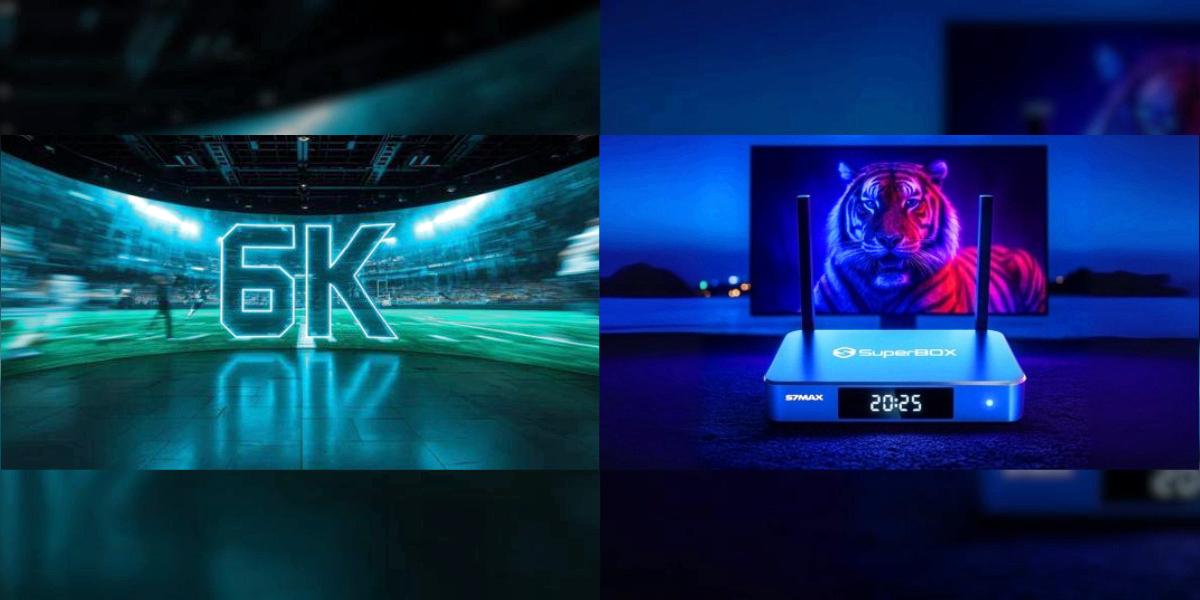

Watching sports on a streaming box can be frustrating if the settings aren't right. You get motion blur during fast plays, random buffering right when something exciting happens, and that annoying second or two of delay that means you hear your neighbor cheer before you see the play.
After testing dozens of setting combinations across NFL, NBA, and MLB games, these are the settings that actually make a difference. None of this requires technical knowledge — you can change everything in 5 minutes from the settings menu.
If you're still dealing with general buffering issues beyond just sports, check out our 5 quick fixes for SuperBox buffering first. And if you're shopping for a new box, our SuperBox model comparison breaks down which models are best for sports fans.
First: Use Wired Ethernet (Most Important Tip)
I'm putting this first because it makes the biggest difference, and almost no one does it.
Sports are the most demanding thing you can watch. Fast camera movement, quick cuts, and high action mean way more data is moving per second than a movie or TV show. On WiFi, that can translate to micro-stutters and buffering at the worst possible moments.
Plugging in an Ethernet cable:
- Eliminates 90% of buffering during live sports
- Cuts latency by 30-50% (less delay vs. cable)
- Stops random quality drops during big plays
- Works regardless of how many people are on your WiFi
You don't need a fancy cable — any Cat5e or Cat6 Ethernet cable works. Run it behind your TV stand or along the baseboard, and you'll notice the difference immediately. This is the single best upgrade you can make for watching sports.
If you absolutely can't run a cable, at least make sure you're connected to the 5GHz WiFi network, not 2.4GHz.
Picture Settings for Sports
These settings reduce motion blur and make fast plays look smoother. You can find all of these in Settings → Display.
Turn On Motion Smoothing (Yes, Really)
For movies and TV shows, motion smoothing (the "soap opera effect") looks terrible. For sports, it's your friend.
Turn on Motion Enhancement or Motion Smoothing (the exact name varies slightly by firmware version). This makes fast movement like a running back breaking free or a tennis serve look much smoother, with less blur.
If it feels too weird for everything else, you can always turn it off after the game.
Set Picture Mode to "Sports" or "Vivid"
Most TVs have a dedicated Sports picture mode, and it works great with SuperBox. If your TV doesn't, use "Vivid" mode — it boosts contrast and sharpness, making it easier to see the ball against grass or court.
Quick picture settings cheat sheet:
- Contrast: 80-85
- Sharpness: 50-55 (don't max it out — that adds weird edge artifacts)
- Color: 55-60
- Motion smoothing: On for sports
- Game Mode: Off (it can cause picture quality issues for video)
Match Frame Rate
Turn on HDMI Match Frame Rate in SuperBox display settings. This matches the box's output to the native frame rate of the broadcast, which reduces judder during panning shots (like when the camera follows a receiver downfield).
Audio Settings for Sports
Sports audio is about hearing the commentary clearly and feeling the crowd noise.
- Set audio output to Auto or Pass-through if you have a soundbar or receiver
- Turn off any "night mode" or "volume leveling" — these compress the audio and make crowd noise sound flat
- If dialogue is hard to hear, turn on Dialogue Enhancement if your TV/soundbar has it
- For big games, bump the center channel up 2-3dB if you have a surround system — that's where the announcers live
The Secret Weapon: Time Shift for Sports
This is the feature that makes watching sports on SuperBox better than cable or any other streaming device, and almost no one uses it to its full potential.
Instant Replays in Your Pocket
Every sports fan has been there: you blink, you look at your phone for two seconds, and you miss the play. With Time Shift, you don't have to wait for the broadcast to show a replay — you just rewind 10 seconds and watch it again.
Pro tips for sports:
- Hit pause immediately if someone yells "OH!" and you missed it
- Rewind 10-15 seconds to watch big plays again
- Use slow motion for close plays or controversial calls
- Jump back to live with one button press when you're caught up
Watch the Ending Without Commercials
If a game goes down to the wire, you can pause it when there are 2 minutes left, go grab a drink or use the bathroom, and skip through all the commercials and timeouts when you come back. You'll finish watching right as the game ends in real time, and you won't have missed a play.
Never Miss Kickoff
Running late? Just start watching whenever you get home, and pause/rewind as needed. You don't have to choose between missing the start or avoiding spoilers. The 7-day buffer on S7 models means you can even watch a whole game the next day if you can't watch it live.
If you're still on an S6, you get 8 hours of buffer — enough for most games, but not enough to watch the next day. That's one of the biggest reasons sports fans upgrade to the S7.
Reduce Broadcast Delay (Latency)
One of the most annoying things about streaming sports is the 10-30 second delay behind cable. You can't eliminate it entirely, but you can shrink it:
- Use wired Ethernet — cuts 2-5 seconds off delay vs. WiFi
- Close other apps — background apps can add small delays
- Restart before the game — a fresh boot gives you the snappiest performance
- Turn off VPN if you're using one — VPNs add significant latency
Even with these tweaks, you'll still be a few seconds behind cable. If you're watching with friends who have cable, just tell them not to text you spoilers. Or better yet, mute the group chat until you're done.
Common Sports-Watching Problems Fixed
Motion Blur During Fast Plays
- Turn on motion smoothing
- Make sure match frame rate is on
- If you're on WiFi, switch to Ethernet
- Turn off any power saving modes on your TV
Buffering Right Before Big Plays
- This is almost always network congestion
- Wired Ethernet fixes this 9 times out of 10
- If on WiFi, move closer to the router or use 5GHz
- Pause for 30 seconds to let the buffer build before kickoff
Audio Is Out of Sync
- Restart the stream
- Check that audio pass-through is set correctly
- If using a soundbar, make sure it's connected via HDMI ARC, not optical
Picture Looks Too Dark
- Turn off HDR if it's on (sports broadcasts aren't mastered for HDR)
- Switch to Sports or Vivid picture mode
- Bump brightness up 5-10 points
Which SuperBox Is Best for Sports?
If you're still deciding which model to get for sports:
- S7 Max is the sweet spot for most fans. Gigabit Ethernet for zero buffering, 7-day Time Shift for replays, and enough storage for all your apps.
- S7 Ultra adds a backlit remote, which is nice for watching games in the dark with friends.
- S7 Pro works fine, but 32GB can get tight if you install a lot of apps.
- S6 models work, but the 100Mbps Ethernet can cause buffering during peak times, and the 8-hour buffer isn't enough for next-day replays.
For a full breakdown, see our S7 Pro vs Max comparison.
Final Tips for Game Day
- Restart your SuperBox an hour before kickoff — this clears memory and ensures it's running fresh
- Have the Ethernet cable plugged in — don't trust WiFi for the big game
- Test a different channel 10 minutes early — make sure everything is working before kickoff
- Keep the remote handy — you'll be using that rewind button
- Don't invite that friend who always asks "how do you rewind that?" — just kidding, show them how Time Shift works and they'll be jealous
Enjoy the game.
For more tips and tricks, check out our beginner's setup guide if you're new to SuperBox. And if you're ready to upgrade, you can shop the S7 Max here.