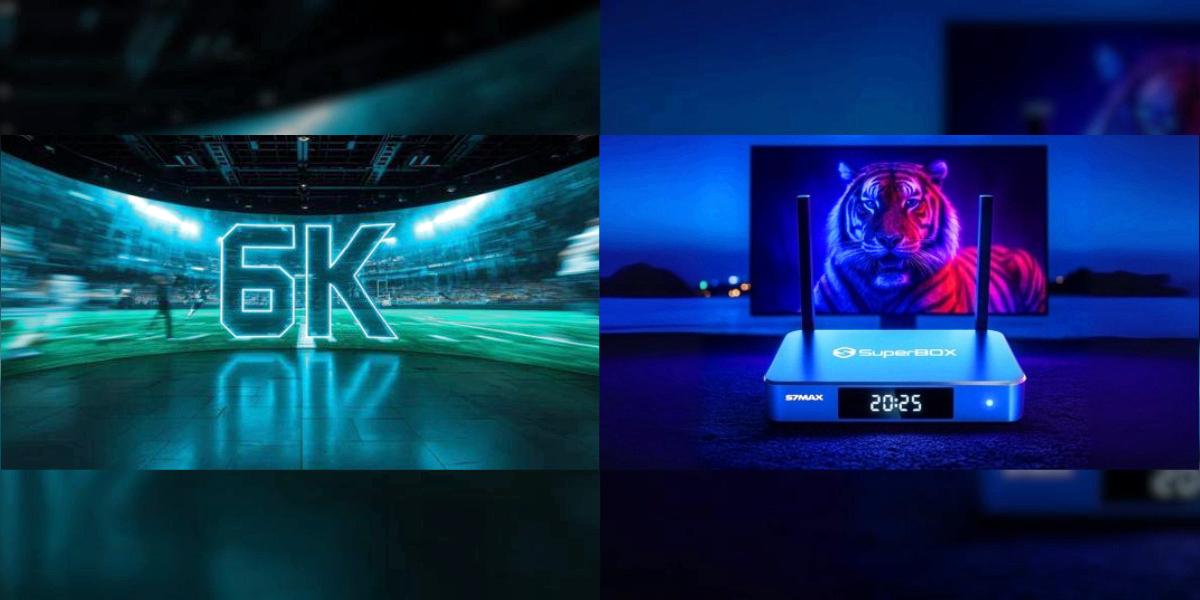

One of the most useful features on the SuperBox S8 is also one of the most underused: multi-view. Being able to run two or more apps on the same screen sounds simple, but a lot of people never figure out how to set it up properly. This guide walks you through everything, step by step.
First: Check Your Model
Multi-view is available on all S8 models, but the scope differs:
- S8 Pro and S8 Plus: Limited multi-view — works with selected app types
- S8 Max and S8 Ultra: Full multi-view — supports more sources and more flexible layouts
If you own an S7, multi-view availability depends on your specific model. The S8 generation is where multi-view became a standard feature across the lineup.
Getting Started: Launching Multi-View
- Open the first app you want to use.
- Press the Multi-View button on your remote (it looks like two overlapping rectangles).
- A menu will appear showing available multi-view layouts.
- Select the layout you want (side-by-side, picture-in-picture, etc.).
- Choose the second app from your available apps or recent list.
- The screen will split, with your original app in one pane and the new app in the other.
That is it. The whole process takes about ten seconds once you know which button to press.
Switching Focus Between Panes
When multi-view is active, only one pane has "focus" at a time — that is the pane whose audio you hear and whose controls respond to your remote. To switch focus:
- Press the OK button to toggle focus between panes, or
- Use the directional pad to move the highlight to the pane you want to control.
The focused pane is usually indicated by a subtle border or highlight.
Adjusting Pane Size and Position
On the S8 Max and S8 Ultra with full multi-view, you can adjust how the screen is divided:
- While in multi-view, press the Menu button.
- Select Adjust Layout.
- Use the directional pad to resize or reposition panes.
- Press OK to confirm.
Some layouts support dragging the divider line to make one pane larger and the other smaller. Experiment to find what works for your apps.
Picture-in-Picture Mode
Picture-in-picture (PiP) is a specific multi-view layout where one app runs full screen and a second app appears in a small movable window. To use PiP:
- Open the app you want in the background (full screen).
- Press the Home button once — the app will shrink into a small window.
- Navigate to and launch the second app.
- The first app continues running in the PiP window.
- To move the PiP window, highlight it and use the directional pad.
- To close it, highlight the PiP window and press the Back button.
PiP is perfect for keeping an eye on one app while browsing menus or checking something else.
Audio: Which Pane Do You Hear?
By default, you hear the audio from the focused pane. Some multi-view layouts let you mix audio from both sources, but in most cases you will want to focus on the audio that matters most. Use the focus toggle to switch which app's audio is active.
Exiting Multi-View
To return to full-screen use:
- Press the Multi-View button again and select Exit Multi-View, or
- Press the Back button until only one pane remains.
Tips for Getting the Most Out of Multi-View
- Big Event Days — Put the main app full screen and use PiP for a second app.
- Background Monitoring — Keep a utility app in a small PiP window while using your main app.
- App Preview — Use multi-view to check another app without leaving what you are using.
- Shared Use — Let one person use a small window while the main pane stays on the primary app.
- Remember the Focus — If the audio seems wrong, you probably just need to switch focus to the other pane.
Troubleshooting
- Multi-view button does nothing? Make sure you already have an app open before pressing it.
- Second app not available? Some apps may not support multi-view, especially on S8 Pro and S8 Plus with limited multi-view.
- Audio is out of sync? Try switching focus away and back, or exit and re-enter multi-view.
- Layout options are limited? S8 Pro and Plus have fewer layouts than Max and Ultra.
Multi-view is one of those features that sounds gimmicky until you start using it regularly. Once you get used to running two apps at once, going back to a single screen feels restrictive. Give it a try during your next big session — you might never go back.